Enhanced Listing Optimizer Revamp – User Guide
Overview
The Listing Optimizer has been redesigned to provide a more guided, AI-powered optimization experience. The new workflow helps sellers create optimized listings faster while maintaining full control over keyword strategy, content refinement, and AI-generated recommendations.
The revamped experience introduces:
- Auto AI Optimization
- Custom AI Optimization
- AI-powered keyword placement recommendations
- Keyword usage tracking and match detection
- Section-wise AI optimization
- Keyword re-suggestion based on optimization goals
- Enhanced content editor with validation controls
How the New Listing Optimizer Works
Step 1: Create a New Optimization
Navigate to Listing Optimizer and create a new optimization project.
Provide the required listing details and complete the setup process as usual.
Step 2: Select Keyword Sources
Choose the keyword banks that you want the optimizer to use.
The selected keyword banks will be used for:
- Keyword recommendations
- AI optimization
- Placement suggestions
- Content generation
Step 3: Choose an Optimization Mode
After completing the first two steps, the system displays an optimization selection modal.
You can choose one of two optimization modes:
Auto AI Optimization
Use this option when you want AI to automatically generate optimized content.
You can choose which sections should be optimized:
- Title
- Bullet Points
- Description
- Backend Search Terms
- All Sections
Once selected, the system:
- Analyzes the selected keyword banks
- Identifies high-performing keywords
- Recommends keyword placements
- Generates optimized content
An optimization progress screen is displayed while processing.
Custom AI Optimization
Use this option when you prefer complete control over keyword selection and placement.
The workspace opens directly, allowing you to manually manage:
- Keyword selection
- Keyword placements
- Content editing
- AI optimization requests
If no selection is made before the countdown timer ends, the system automatically proceeds with Auto AI Optimization.
Understanding the Keyword Workspace
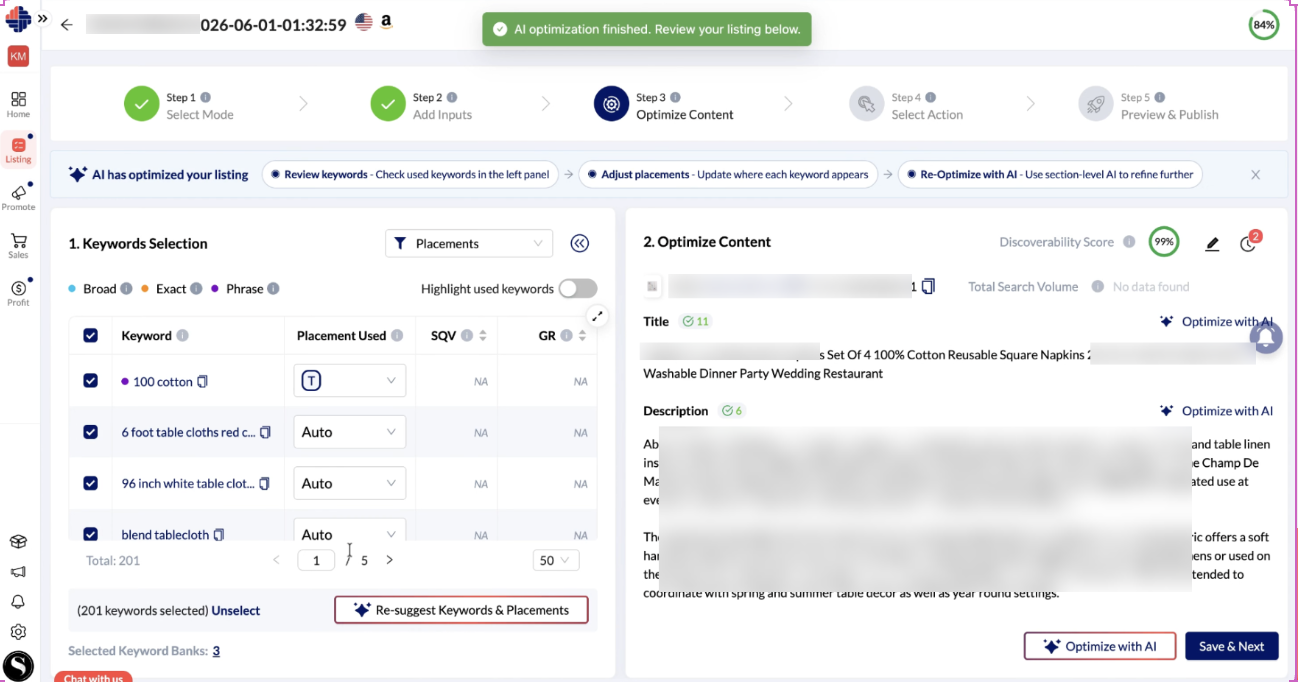
The left panel contains the Keyword Workspace.
Keyword Selection
The workspace displays:
- Selected keywords
- Keyword usage status
- Match type
- Placement information
- Keyword bank references
Users can manually:
- Select keywords
- Remove keywords
- Adjust placements
- Override AI recommendations
Placement Management
Keywords can be assigned to one or more content sections.
Supported placements include:
- Title
- Bullet Points
- Description
Placement indicators appear as section initials for easy identification.
Placement Filters
Use placement filters to view keywords assigned to specific sections.
Multiple placements can be selected simultaneously.
Keyword Match Types
The optimizer identifies how keywords are used within content.
Supported match types include:
Exact Match
The keyword appears exactly as entered.
Example:
Keyword:
Anti Theft Bag
Content:
Premium Anti Theft Bag for Travel
Phrase Match
The keyword phrase appears within a longer sentence or phrase.
Broad Match
Keyword terms are present but may appear in a different order or context.
Highlight Used Keywords
Enable the Highlight Used Keywords option to visually identify where keywords appear inside the listing content.
Expanded Keyword Insights
Click the expand icon to view additional keyword metrics.
Available metrics include:
- Search Query Volume
- Conversion Potential
- Search Query Frequency
- Click Potential
- Gross Revenue
Keywords can also be sorted and filtered using these metrics.
Re-Suggest Keywords & Placements
The Re-suggest Keywords & Placements feature helps generate alternative keyword strategies.
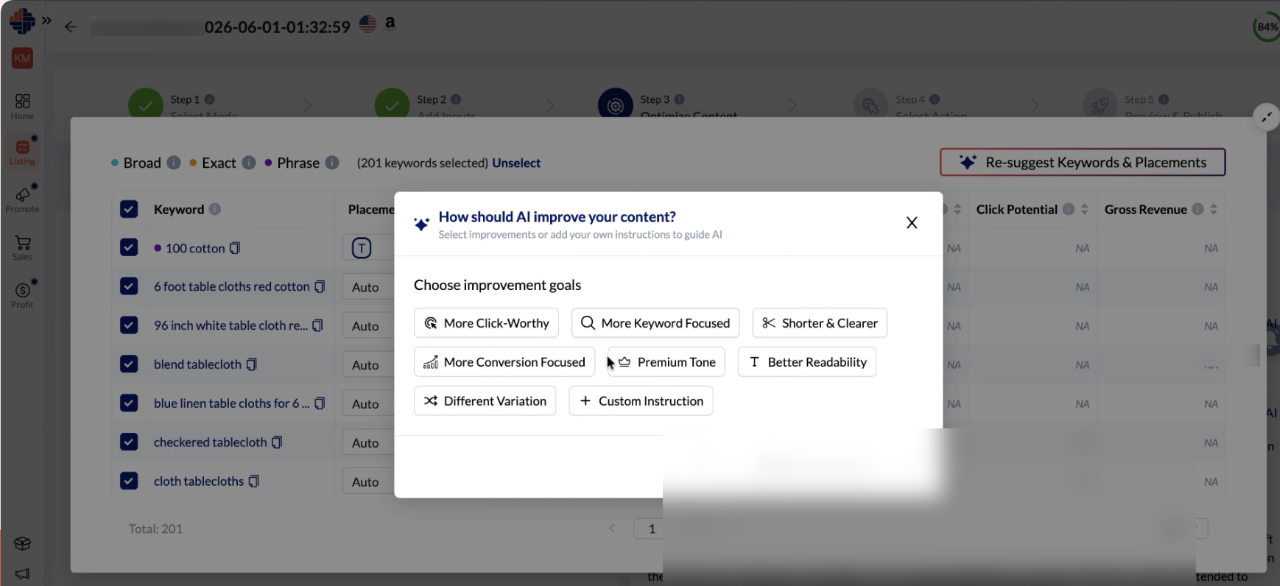
Click the CTA and choose one or more optimization goals:
- More Clickworthy
- More Keyword Focused
- Shorter and Cleverer
- More Conversion Focused
- Pain-Point Driven Tone
- Better Readability
- Different Variation
You may also provide custom instructions.
The optimizer will generate:
- Updated keyword recommendations
- New placement suggestions
- Revised optimization opportunities
All recommendations remain editable.
Working with the Content Editor
The right panel contains the Content Workspace.
Supported sections include:
Title
Optimize your product title with important keywords while maintaining readability.
Bullet Points
Supports up to 10 bullet points.
Each bullet can be edited and optimized independently.
Description
Create detailed, conversion-focused product descriptions.
Backend Search Terms
Optimize hidden search terms to improve discoverability.
Section-Wise AI Optimization
Each content section includes an Optimize with AI button.
When selected:
- A goal selection modal appears
- Choose optimization objectives
- Submit your request
- AI updates only the selected section
Other sections remain unchanged.
This allows sellers to refine individual areas without affecting the entire listing.
Character and Byte Validation
Every content section includes a live counter displaying:
Used Characters / Allowed Characters
The system provides:
- Real-time updates
- Warning states when approaching limits
- Error states when limits are exceeded
If required fields are empty or content exceeds allowed limits:
- Validation messages are displayed
- Save actions are disabled until issues are resolved
Best Practices
For optimal results:
- Start with Auto AI Optimization for quick content generation.
- Review keyword placements before publishing.
- Use Highlight Used Keywords to verify keyword coverage.
- Use Re-suggest Keywords & Placements when targeting different optimization goals.
- Optimize individual sections instead of regenerating the entire listing whenever possible.
- Review character limits before finalizing content.
Frequently Asked Questions
Can I edit AI-generated content?
Yes. All AI-generated content remains fully editable.
Can I change keyword placements?
Yes. AI recommendations can be manually overridden at any time.
Can I optimize only one section?
Yes. Each section supports independent AI optimization.
What happens if I do not select an optimization mode?
The system automatically proceeds with Auto AI Optimization after the countdown timer expires.
Can I re-generate keyword recommendations?
Yes. Use the Re-suggest Keywords & Placements feature and provide optimization goals to generate new recommendations.
Will my manual edits be lost?
No. Manual edits remain until you explicitly re-optimize the affected section.
Related Articles
Generate AI Product Images & A+ Content Directly Inside Listing Optimizer
AI Image Generation AI Image Generation is a feature within Listing Optimizer that enables sellers to create high-quality AI-generated visuals for their Amazon listings without using external design tools. The feature supports generating both: ...Unified Workflow Across Listing Modules
Overview Unified Workflow and Cross-Linking enables seamless movement between Keyword Researcher, Keyword Tracker, Listing Optimizer, Listing Analyzer, and Listing Tracker. This capability reduces manual effort by automatically transferring relevant ...Introducing the New 360° Listing Analyzer Report
Overview We’ve completely transformed the Listing Analyzer experience. Previously, the Listing Analyzer primarily focused on validating whether your listing content aligned with Amazon’s recommended best practices and content guidelines. While ...Listing Analyser Overview: Purpose, Capabilities, and When to Use It
Overview Listing Analyser is a tool within the Listing Management module that helps sellers evaluate their product listings against competitors on Amazon. Its purpose is to provide a structured comparison of listing quality, performance indicators, ...Ignoring Suggestions and Reviewing Product-Level Breakdown in Listing Tracker
Overview This article explains how sellers can ignore listing suggestions and review detailed, product-level breakdowns in Listing Tracker. These actions help sellers manage suggestion relevance and understand specific listing quality issues before ...